- NanoBits
- Posts
- Create an AI agent for document search with n8n in under 21 minutes
Create an AI agent for document search with n8n in under 21 minutes
Nanobits Product Spotlight

Monalisa Sethi
July 27, 2025

UPCOMING EVENT
We are hosting Dhananjay, Co-founder of NeoSapien, India's first AI-native wearable that tracks conversations and analyzes emotions (funded on Shark Tank India S4)! He will share his insights on building hardware + AI in India, demo his product, and answer audience questions.
Come and join us for a discussion about the future of AI wearables, the "Second Brain" technology, and the journey from idea to Shark Tank success.
📅 2nd Aug | 10:30 AM IST | Google Meet
Limited seats available. Register here: https://lu.ma/7ozllayb
EDITOR’S NOTE
Dear future-proof humans,
Last week, we learned how to build your first AI agent with n8n. You learned how triggers work, why memory matters in conversations, and how to create simple chatbots that understand context. Now that the foundation is set, let’s explore some of the more practical and powerful workflows that can be built on n8n.io.
Today, we will build a document intelligence agent using RAG workflows. RAG stands for Retrieval-Augmented Generation, which may sound technical, but it solves an everyday problem that every team faces.
Think about your current workflow when someone asks a question about company policies, product specifications, or past project decisions. You probably search through folders, dig through email threads, or interrupt colleagues who might remember where that information lives. The answer exists somewhere in your PDFs, Google Docs, or Confluence pages, but finding it takes time you don't have.
Knowledge workers spend nearly 20% of their time searching for internal information or tracking down colleagues who can help with specific tasks, according to McKinsey research.
That's one full day each week dedicated to hunting down answers that already exist in your organization's documents. Customer support teams dig through product manuals for every technical question. HR departments force employees to browse thick handbook PDFs for policy answers. Engineering teams field the same integration questions repeatedly from client developers. Product teams schedule endless meetings to clarify requirements from PRDs. Research teams manually search through academic papers and market reports. Marketing teams hunt through folders for brand guidelines and past campaign examples.
With RAG workflows, instead of searching for documents and then reading through them manually, you upload your content once and ask questions in natural language. Your AI agent knows your specific documentation, understands context, and provides accurate answers with source references.
By the end of this newsletter, you'll have a working document intelligence agent that can answer questions about any PDF or document you upload. Let's build something that actually saves time.
WHAT IS RAG AND WHY IT MATTERS?
RAG stands for Retrieval-Augmented Generation, which describes exactly what the process does. The system retrieves relevant data from the documents you've provided, augments that information with the AI's reasoning capabilities, and generates a comprehensive answer based on both your specific content and the model's knowledge.
Let’s say you're a lawyer with hundreds of case files, and you need to find a specific reference or precedent. In a traditional setup, you might upload all your PDF files to ChatGPT or another AI chatbot and ask for an answer.
This approach is highly inefficient. To answer one small question, you're forcing the AI to process hundreds of documents it doesn't need. RAG solves this problem by breaking down your documents into smaller, manageable pieces. You can upload PDFs, Word documents, text files, or images, and the system splits them into chunks before passing them through an embedding model.
The embeddings model creates a three-dimensional map where each chunk gets assigned specific coordinates based on its content. Picture all your document chunks floating in this 3D space, with similar topics naturally clustering together.
Here's where it gets powerful. Let's say your documents mention a red bus case, and you want to find it. In the 3D space, content about the red bus clusters is near other red vehicles, while the blue buses group separately. When you ask "Tell me about the red bus case," the system passes your question through the same embeddings model to find its coordinates, then locates the chunks closest to those coordinates in the space.
Note: You must use the same embedding model for both ingesting documents from the knowledge base and processing the user queries.

Because each model creates vectors in its own unique dimensional space with different coordinate systems. If you use different models, your query embeddings won't align with your document embeddings in the vector space, making it impossible to find relevant matches through cosine similarity.

Think of it like using different measurement units; you can't compare distances measured in miles with those measured in kilometers without conversion.
Instead of searching through every single chunk, the system pinpoints exactly where the red bus information lives and retrieves only those relevant pieces. This targeted approach delivers precise answers quickly, using just the information you actually need rather than overwhelming the AI with irrelevant documents.
💡 Time for some high school math! What's the logic behind RAG agents?
The agent calculates the cosine of the angle between your query and each document chunk. The chunk with the smallest angle to your query gets selected as the most relevant answer.
You can set the similarility factor for fine-tuning your answers. Let’s say if the similarity is less than 0.5, you can instruct the model to discard them and only accept answers which have similarity factor of 0.5 and above.

Visual representation of how a RAG workflow works; Source: GeeksforGeeks
BUILDING YOUR DOCUMENT INTELLIGENCE AGENT STEP-BY-STEP
Now comes the exciting part: building a complete RAG workflow in n8n. We'll create two separate processes that work together to transform your documents into an intelligent, queryable system.
Part 1: Document Processing Pipeline
Step 1: Set Up the Document Upload Trigger. Create a new workflow and drag the "When clicking 'Execute workflow'" trigger onto your canvas. This manual trigger requires no configuration and serves as your starting point for processing documents. Whenever you click on “Execute Workflow,“ the workflow starts.

Step 2: Configure File Search and Download. Add a "Search files and folders" node and connect it to your trigger. Configure it to point to your document folder (such as Google Drive).

Now, execute the workflow. Next, add a "Download file" node and connect it to the search node. Configure the download node to fetch the actual file content that will be processed.

Things to note for this step:
For the first time, you need to set up OAuth to connect your Google Drive to n8n.io. This is a one-time activity.
Here is a detailed video on how you can set it up: How to set up Google OAuth in n8n.
Step 3: Process Files in Batches. Connect a "Loop Over Items" node after the file search. Why are we using this loop? Because there are three files, I want to loop through them three times. That’s what this node does; based on the number of inputs it gets, it will loop that many times.

Step 4: Set Up the Vector Store (Pinecone). Drag the "Pinecone Vector Store" node onto your canvas. In the node settings, select "Insert Documents" mode. Enter your Pinecone index name and add your Pinecone API credentials. This node will store all your document embeddings.
Pinecone vector store is one of the DBs that stores things in a vectorized format. It acts as the central database that stores and organizes all your document chunks in searchable format. It handles both inserting new document chunks during processing and retrieving the most relevant chunks during queries, enabling fast similarity searches across your entire knowledge base.How to create
Go to pinecone.io and sign up
Save the API key in your notepad for later use


Step 5: Configure Document Processing Components. You'll need to connect three sub-nodes to the Pinecone Vector Store:
Embeddings OpenAI: Click the embeddings connector and add this node. Select the "text-embedding-3-small" model and add your OpenAI API key. This converts text into searchable vectors.

Default Data Loader: This node converts your raw files into a format that the database can understand. For instance, if your data has an emoji symbol, it will sanitize it and make it purely text-based. Connect this to handle document reading. Set the data type to "Binary" and enable automatic MIME type detection. This extracts text from your PDFs while preserving metadata.
Recursive Character Text Splitter: With this node, you can control how documents get chunked. Set chunk size to 1000 characters (you can experiment with the chunk size based on the problem statement you are trying to solve) with 200-character overlap. This creates optimal-sized pieces for embedding.
What’s the significance of an overlap? Let’s say the document (in this case, the books) gets chunked into many pieces. The last 200 characters of one chunk and the first 200 characters of the next chunk are the same. This creates a link between the 2 chunks. So, when these chunks occupy space in the 3D space, they are not randomly floating around, they are linked by this overlap.

Part 2: Chat Interface for Querying
Step 6: Create the Chat Interface. On a separate part of your canvas, add a "When chat message received" trigger. This automatically creates a chat interface accessible through n8n's chat URL. No additional configuration needed.

Step 7: Set Up the AI Agent. Connect a "Question and Answer Chain" node to your chat trigger. In the settings (click on “Add Option“), you can modify the system message that defines how your agent should behave.

Step 8: Configure Query Processing. Connect these essential components to your Q&A chain:
OpenAI Chat Model: Select "gpt-4.1-mini" since that’s the default model when you use the free credits that n8n provides, or you may select a model of your choice, such as “gpt-4“ or "gpt-3.5-turbo", and add your API credentials. This generates natural language responses using the retrieved context.
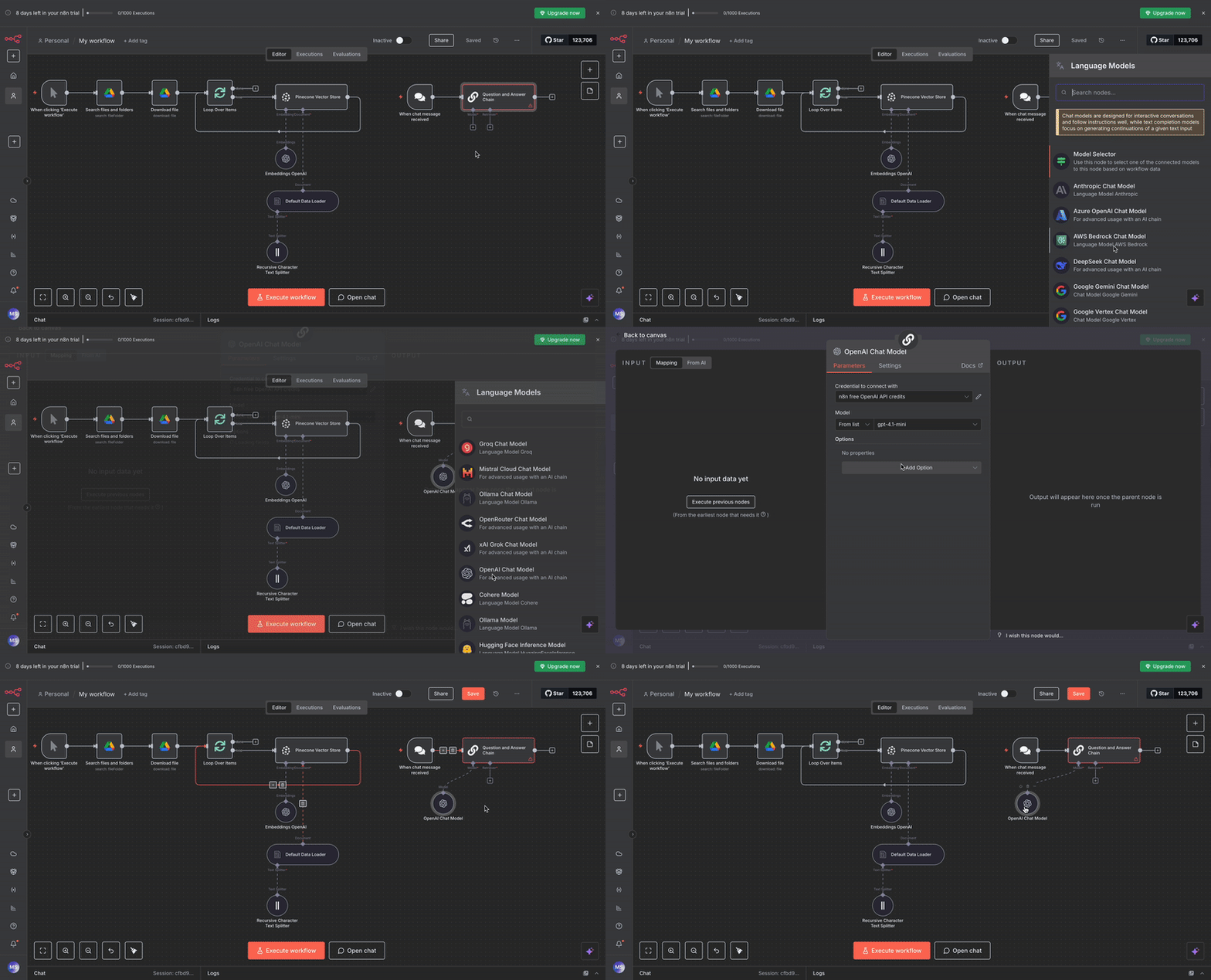
Vector Store Retriever: Set this to connect to your existing Pinecone Vector Store. Configure it to retrieve the top 4 most relevant chunks for each query.


Embeddings OpenAI: Use the same embedding model as your document processing pipeline to ensure query compatibility.

Step 9: Test Your System. Run the document processing workflow first to populate your vector database. Then open the chat interface and ask questions about your uploaded content. The system should return accurate answers with context from your specific documents.

Save both workflows and test with a small PDF first to verify everything works before processing larger document collections.
ADVANCE CUSTOMIZATIONS & REAL-WORLD USE CASES
Here are a few advanced customizations you can try while creating your RAG agent:
Your document intelligence agent handles more than just PDFs. You can upload Word documents, text files, HTML pages, and even spreadsheets. The Default Data Loader automatically detects file types and extracts content appropriately.
Fine-tuning chunk sizes dramatically improves accuracy. Start with 1,000 characters for general documents, but experiment with 500 characters for dense technical content or 1,500 characters for narrative text. An overlap of 10-20% ensures essential information doesn't get split awkwardly between chunks.
Craft more effective prompts to improve response quality. Instead of generic instructions, specify tone and format: "You are a technical documentation assistant. Provide step-by-step answers with relevant code examples. Always cite the source document section."
Manage multiple collections by creating separate Pinecone indexes for different document types. Sales materials, HR policies, and technical documentation should have their own searchable spaces, rather than being mixed together in a single database.
The applications span every department. Customer support teams upload product manuals and troubleshooting guides, enabling instant answers to complex technical questions. HR departments build searchable policy databases that employees can query naturally, rather than browsing through handbook PDFs.
In B2B SaaS companies, technical teams provide integration documentation to clients. Building a RAG agent with your API documentation, SDK guides, and integration examples helps client developers resolve queries instantly without creating support tickets.
Product teams upload PRDs to shared knowledge bases where engineers can ask specific questions about features, requirements, and user stories. Instead of scheduling meetings to clarify requirements, developers get immediate answers from the source documents.
Research teams process academic papers, market reports, and industry analyses into queryable databases. Marketing teams reference brand guidelines, campaign results, and content strategies through conversational interfaces that understand context and provide relevant examples from past work.
💡 TIPS ON HOW NOT TO WRITE LIKE AN AI
Let’s deal with punctuation. Here’s what you can do.
Stick to basics. Use periods, commas, and question marks. Avoid semicolons and em dashes.
Replace semicolons with periods. Turn two connected thoughts into separate sentences.
Skip fancy punctuation. Em dashes make writing look artificial.
Prompt: Never use dashes of any kind (hyphens, en dashes, em dashes) in sentences unless I explicitly ask for them. Write out separate clauses using commas, semicolons, or periods instead. As you write, aim for natural transitions instead of relying on colons. Vary sentence structure to avoid colon overuse, especially in headers and list lead-ins.
END NOTE
That's all from us for this week.
Over these last two editions of Nanobits, you've built the foundation for practical AI automation. You started with simple chatbots that understand context and memory, then advanced to document intelligence systems that transform scattered information into queryable knowledge. These will serve as the building blocks for solving real workflow problems.
Learning any new automation tool follows a predictable pattern. Start with a specific problem you face regularly, then break it down into simple steps a human would take. Map those steps to available nodes or actions in your chosen platform. Build the simplest version first, test with real data, then add complexity gradually. The key is solving actual problems rather than building impressive demos.
Most people get stuck trying to automate everything at once. Pick one repetitive task that annoys you daily. Build a working solution for that single problem. Once it runs reliably, you'll understand the platform well enough to tackle bigger challenges.
Automation works best when it solves problems you actually have. Every team has unique workflows that could benefit from AI assistance. Whether you're handling customer inquiries, processing documents, or coordinating projects, there's probably a workflow that could run more smoothly with the right automation.
What workflows are slowing down your team? Reply and tell me about the repetitive tasks eating up your time. I'd love to help you figure out how to automate them.
Share the love ❤️ Tell your friends!
If you liked our newsletter, share this link with your friends and request them to subscribe too.
Check out our website to get the latest updates in AI
Reply